
Book appointments without the back and forth.
Only at times that are free.

Customers book appointments themselves, at times when you or your team are free. Each type of appointment has its own link, the confirmation goes out by email with calendar buttons and a customer can reschedule or cancel on their own.
See pricing

Included in every bundle plan · replaces, among others, a separate appointment scheduler

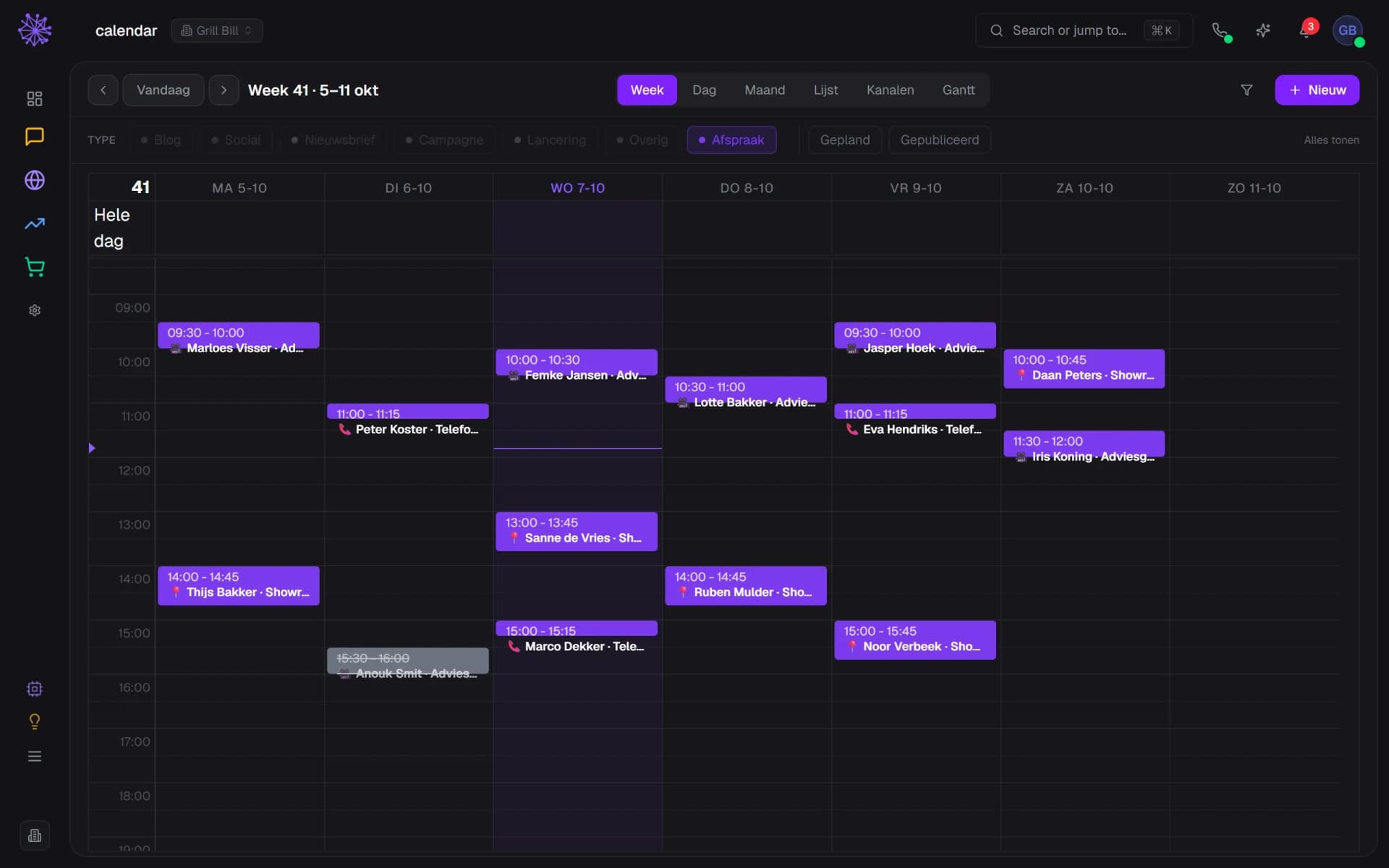
Weekly calendar of Grill Bill with appointments: advice calls over Meet, phone advice, showroom visits and a cancelled appointment, in the Neuramerce dashboard
What's included

From booking page to calendar. In one module.

Appointment types with their own link

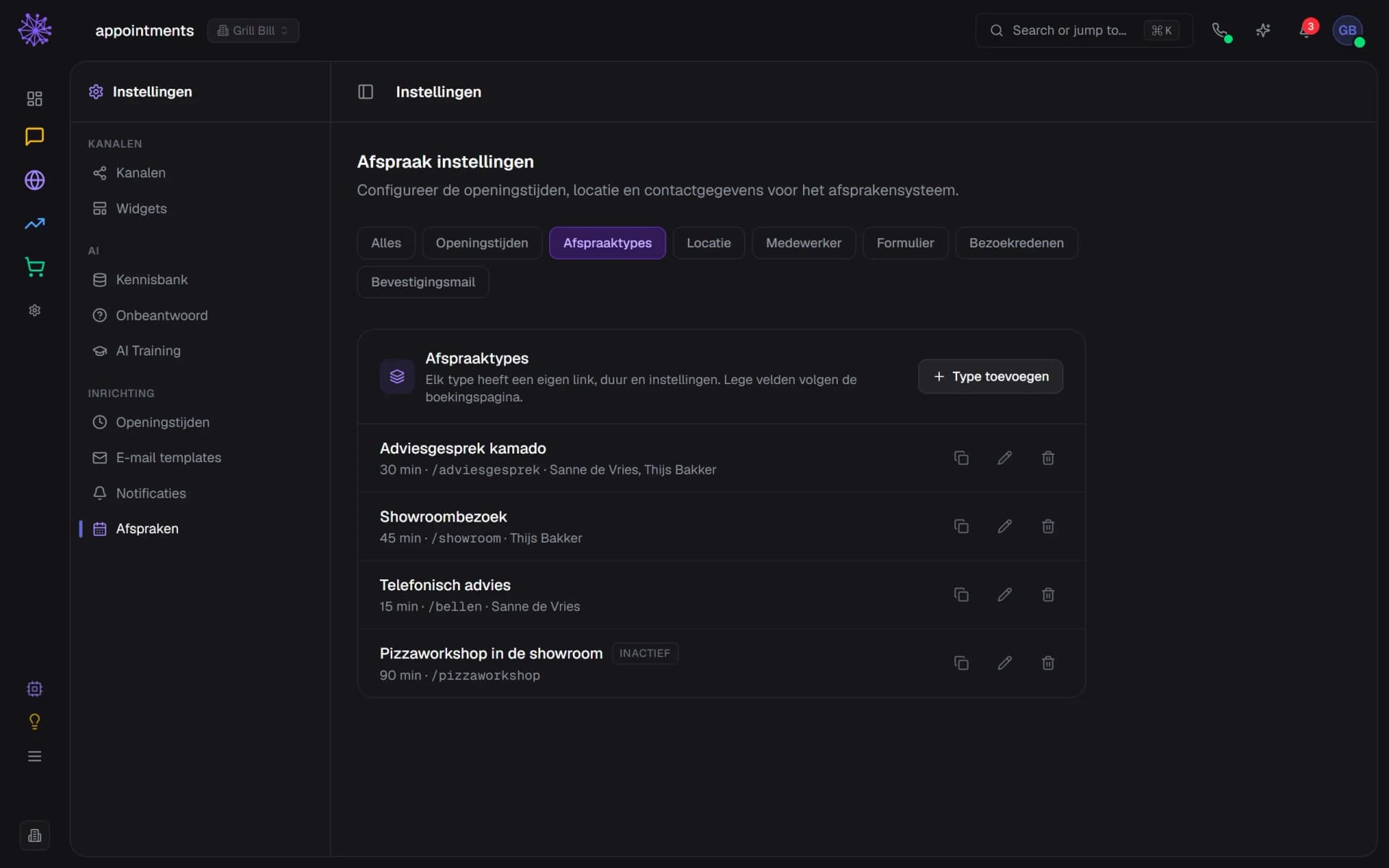
Create kinds of appointments, for example a 30 minute advice call and a 45 minute showroom visit. Each type has its own link and length and belongs to one or more team members. Anything you leave empty follows the booking page.
  1. Create a new appointment type
  2. Own link and team members per type
  3. Copy the booking link of this type
Inbox settings with the appointment types of Grill Bill: advice call, showroom visit, phone advice and an inactive workshop

Hours, buffer and approval

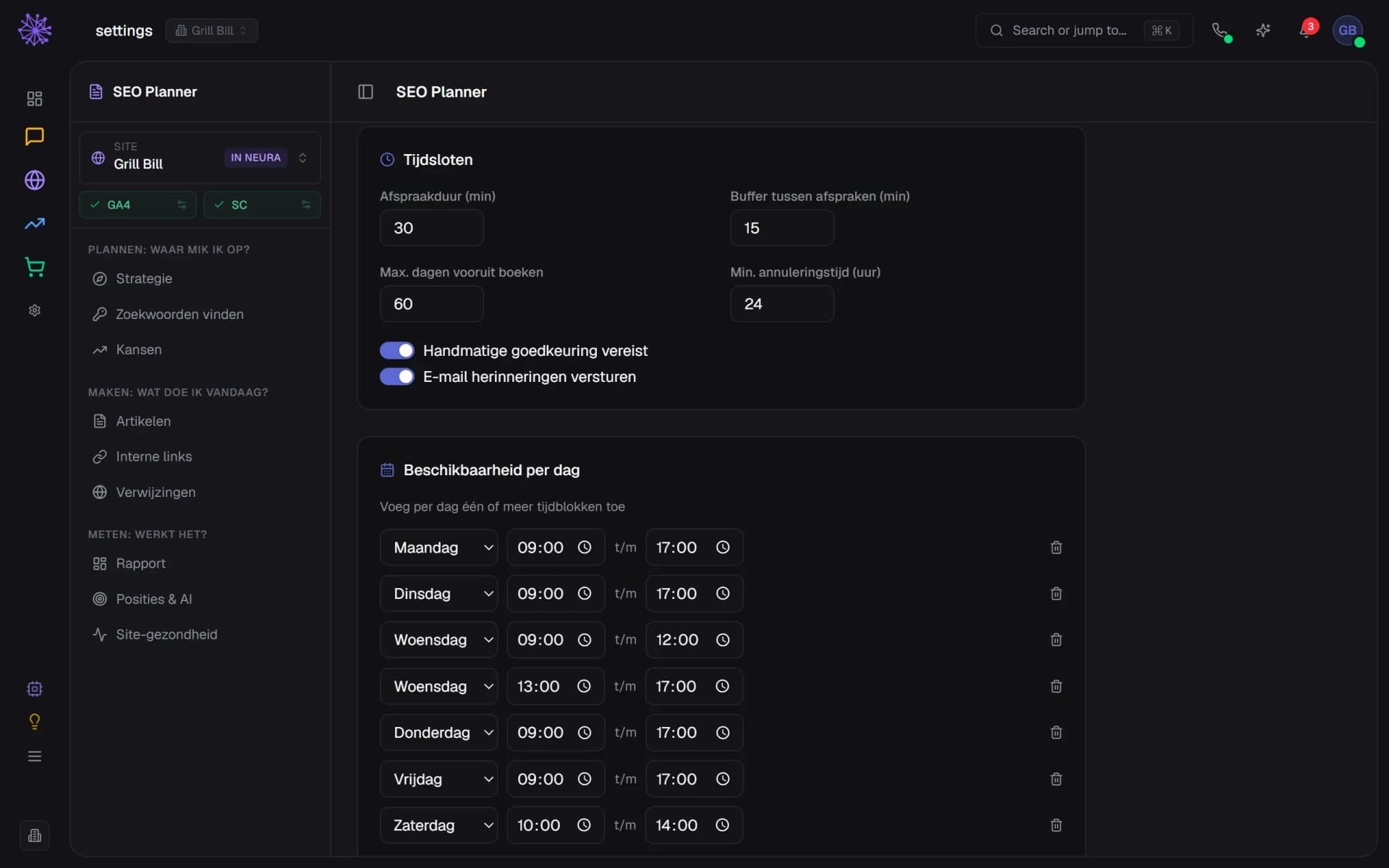
You set the hours per weekday, with several blocks a day if you close at lunchtime. You also set the length, the buffer, how far ahead people can book and how many hours before the appointment a customer can still cancel. Want to see every booking first? Switch on manual approval.
  1. Buffer between two appointments
  2. Approve every booking yourself first
  3. Reminder email a day ahead
Appointment settings with time slots, buffer, approval and reminders, and the availability per day with two blocks on Wednesday

Add your Google Calendar

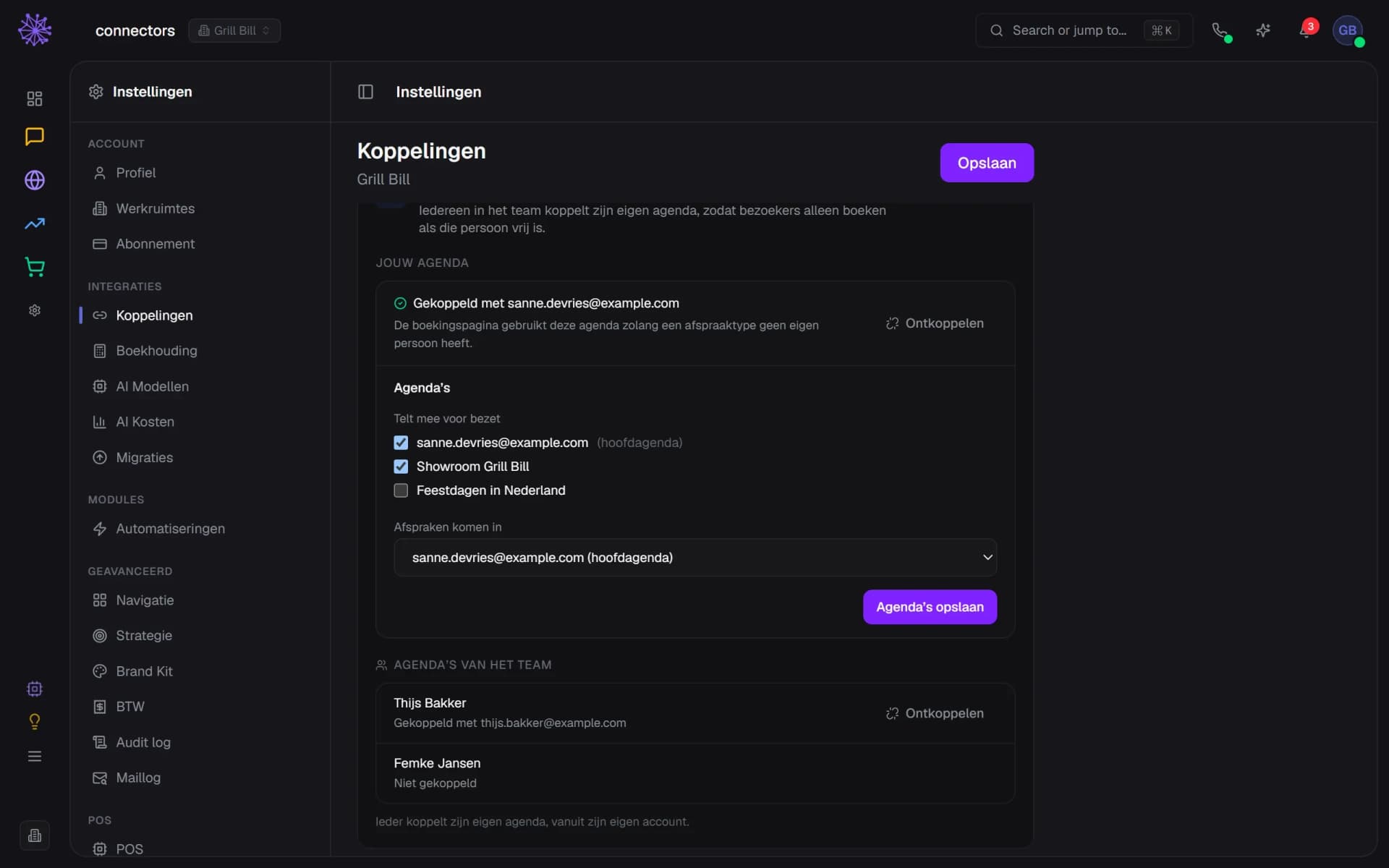
Connect one Google Calendar per person. Times when you are busy in Google disappear from the booking page and every confirmed appointment lands in your calendar. If a type belongs to several people, a time is offered when at least one of them is free. Without a connection the booking page runs on your opening hours.
  1. Every team member connects their own calendar
  2. This calendar counts as busy
  3. Team calendars, per person
Connections, Calendar tab, with a connected Google Calendar, the calendars that count as busy and the calendars of the team

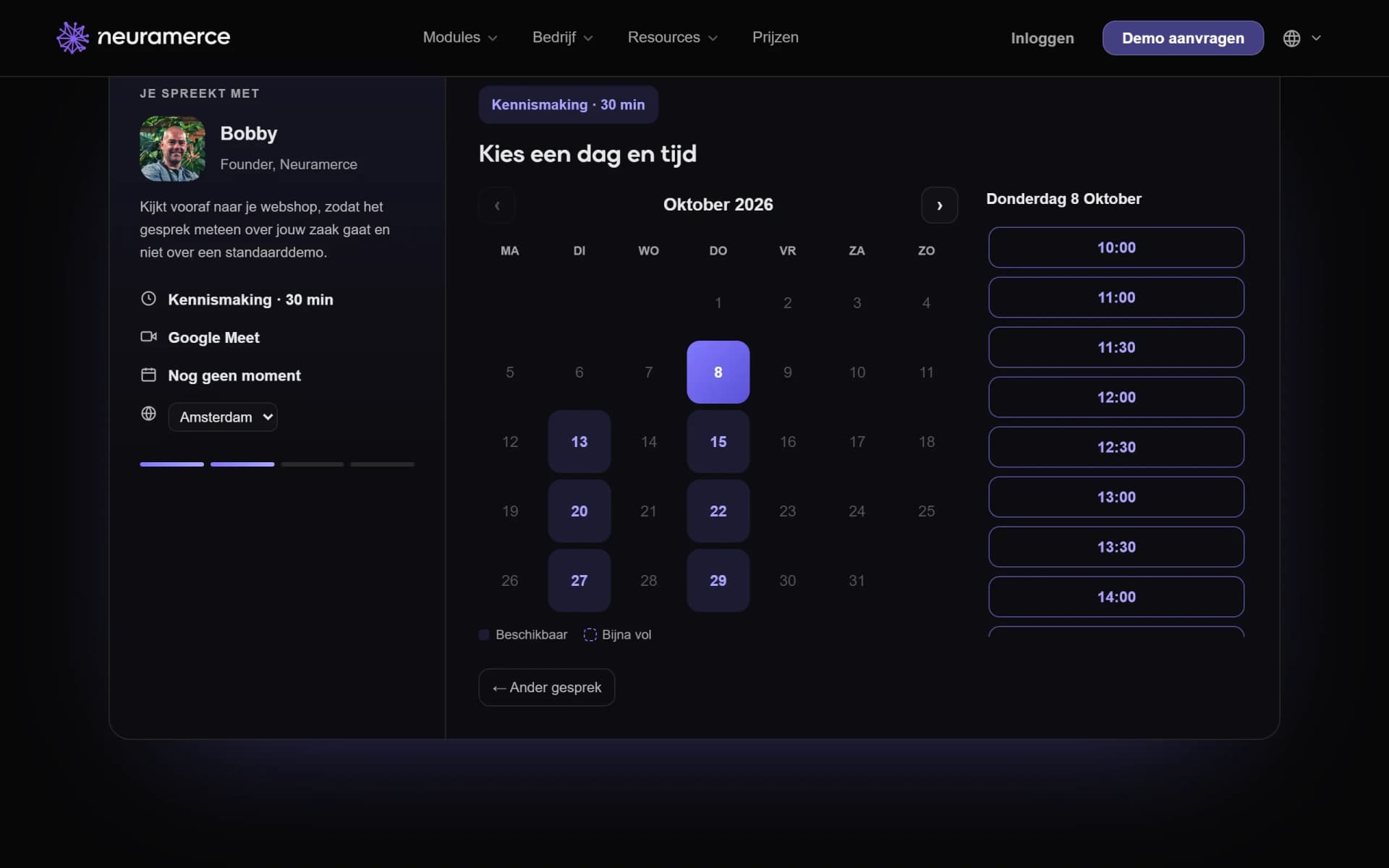
The booking page for your customer

Your customer picks an appointment type, a day and a time, and enters a name and email address. You decide whether a phone number is required and whether you ask for the customer's website. The standard page lives at app.neuramerce.com/book, and Neuramerce built its own page around it on its website.
  1. Video call through Google Meet
  2. Only days with free time can be picked
  3. Times follow your hours and your calendar
Neuramerce booking page with an October calendar, the days with free time marked and the times for a 30 minute introduction

Confirming, reminding and rescheduling

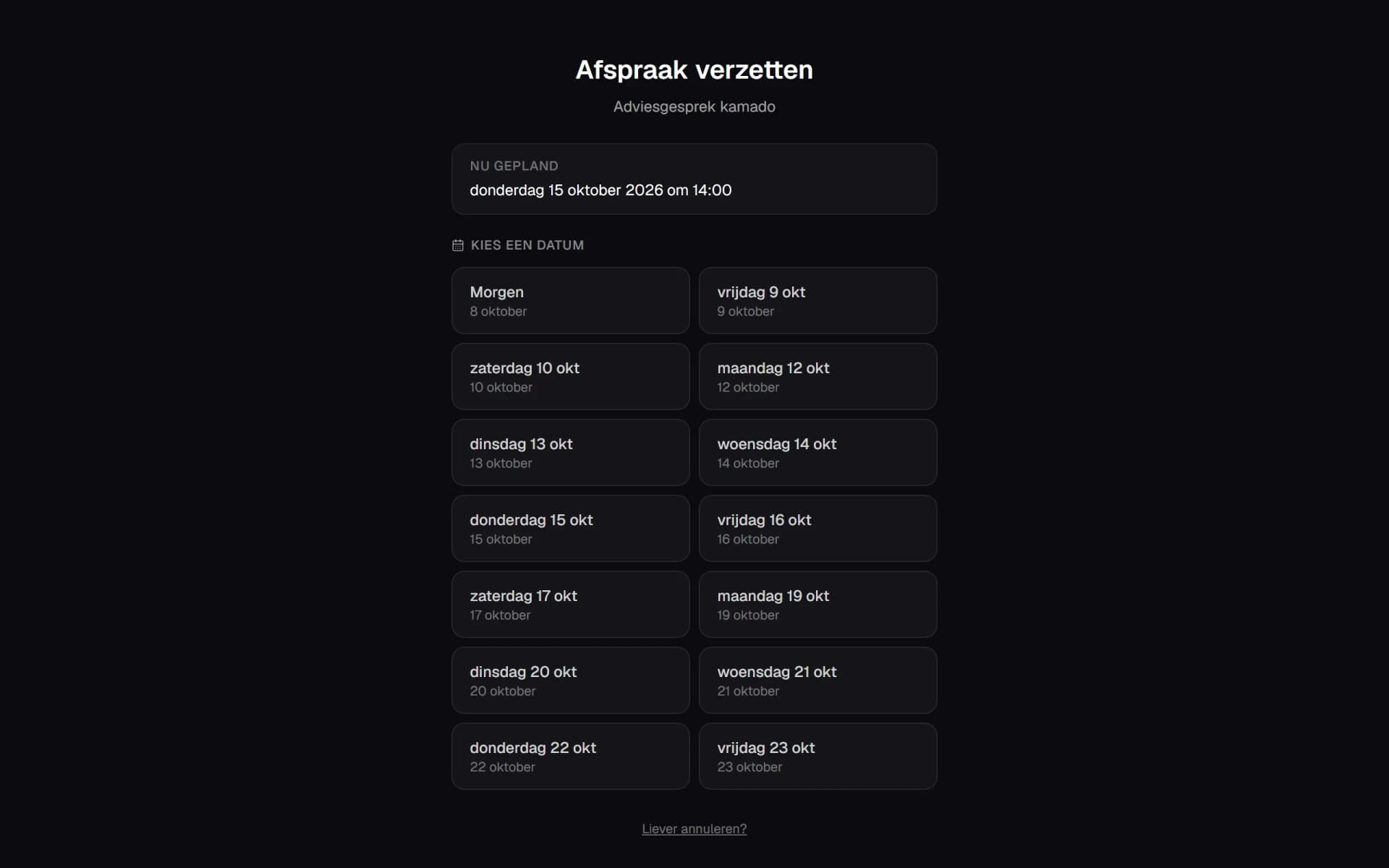
If your customer books directly, they get an email with buttons for Google Calendar, Outlook and Apple, plus an .ics attachment. If approval is on, they first get a receipt. A day before, a reminder follows. The emails contain links to reschedule or cancel, up to the number of hours you set. The emails are in Dutch or English.
  1. The customer first sees the current appointment
  2. Pick a new day from your opening hours
  3. Cancelling works from the same page
Page where a customer reschedules their appointment, with the current appointment, the days to pick from and a link to cancel

All appointments in your calendar

Appointments appear in the Calendar, next to your blogs, social posts and newsletters, or filtered to appointments only. The icon in front shows whether you call, meet on location or use a Meet link, and a cancelled appointment is greyed out and struck through. You confirm, complete and cancel on the appointments page.
  1. Phone icon: you call the customer
  2. Camera icon: a call over Google Meet
  3. Cancelled: greyed out and struck through
Weekly calendar of Grill Bill with appointments: advice calls over Meet, phone advice, showroom visits and a cancelled appointment
app.neuramerce.com/modules/inbox/settings/appointmentsYour dashboard
Inbox settings with the appointment types of Grill Bill: advice call, showroom visit, phone advice and an inactive workshop
Appointment settings with time slots, buffer, approval and reminders, and the availability per day with two blocks on Wednesday
Connections, Calendar tab, with a connected Google Calendar, the calendars that count as busy and the calendars of the team
Neuramerce booking page with an October calendar, the days with free time marked and the times for a 30 minute introduction
Page where a customer reschedules their appointment, with the current appointment, the days to pick from and a link to cancel
Weekly calendar of Grill Bill with appointments: advice calls over Meet, phone advice, showroom visits and a cancelled appointment
In practice

Neuramerce schedules its own demos this way.

On neuramerce.com/boeken a visitor chooses between a 30 minute introduction and a 60 minute live demo, picks a day and a time, and receives a calendar invitation with a Google Meet link.

After booking, the page asks what the visitor's shop runs on, so the conversation can start from there. The page is a custom design on the Neuramerce website; the times come from the same booking page functions that you use too.

An appointment your customer is already known by.

A standalone appointment system knows nothing about your customer contact. This one sits in the same platform, so every appointment lands where your customer already is.
  • Inbox. If a visitor asks for an appointment in the chat, the request appears in the conversation and you schedule it from the inbox, or propose another time.
  • CRM. Every booking creates a person as a lead, or links to someone you already know. From the appointment you open the customer card.
  • Calendar. Appointments sit in the same calendar as your blogs, social posts and newsletters.
FAQ

Frequently asked questions about online appointments.

Yes. You get a booking page with its own link. Your customer picks an appointment type, a day and a time and gets a confirmation by email straight away, unless you switch on manual approval. Only times that the page itself offers can be booked.
Yes. Each appointment type has its own name, length and link, and you choose whether a customer meets over Google Meet, by phone or on location. Types without their own team members share one calendar: an hour long demo also blocks the time for a short advice call.
With Google Calendar it does: busy times disappear from the page and confirmed appointments land in your calendar. You cannot connect Outlook or Apple Calendar. Your customer can still add an appointment to their own Google Calendar or Outlook with a button, or open the .ics in Apple.
Yes, with the links in the confirmation and the reminder. Rescheduling only works to a time that is free. You set how many hours before the appointment that is allowed; at 0 there is no limit. After that the customer has to reply to the email.
That is your choice, for the whole page or per appointment type. With approval on, a booking becomes a request that you confirm on the appointments page. Note: confirming in the dashboard puts the appointment in your calendar but does not send an email itself. So let the customer know yourself, for example through the inbox.
No. The booking page does not ask for payment and has no deposit. If you want a customer to pay, you arrange that outside the appointment, for example with a payment link in a message.
Dutch and English. You set the language of the page and the emails, and adding ?lang=en to the link opens the English version. There are no other languages.
It is part of the Calendar and included in every bundle plan (Starter, Pro and Complete). The settings live under Inbox, so you need the Inbox for them too. The pricing page shows what else each plan includes.

Want to see how your appointments fit in?

In 20 minutes we show you the booking page with your own opening hours and appointment types as the example.
See pricing